Chapter 7 Web Programming
1 Introduction
Section titled “1 Introduction”1.1 The Basic Computing Stack
Section titled “1.1 The Basic Computing Stack”Software applications do not run in isolation; they exist within a layered computing hierarchy:
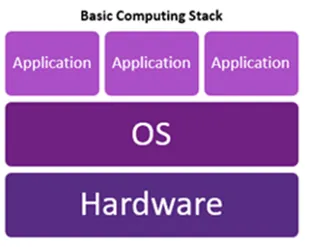
- Hardware: The physical computational and storage machinery (Personal Computers, Laptops, Smartphones, Cloud Data Center Servers, CPUs, RAM, and SSDs).
- Operating System (OS): System software (such as Microsoft Windows, macOS, and Linux) that acts as the intermediary between raw hardware and user-facing software, managing system memory, file access, hardware drivers, and security.
- Applications: User-level programs executed on top of the OS (e.g., Google Chrome, Microsoft Office, VS Code, and custom business applications).
1.2 Data Organization & Hierarchical File Systems
Section titled “1.2 Data Organization & Hierarchical File Systems”Web servers and local development environments rely on hierarchical tree structures for organizing files and directories.
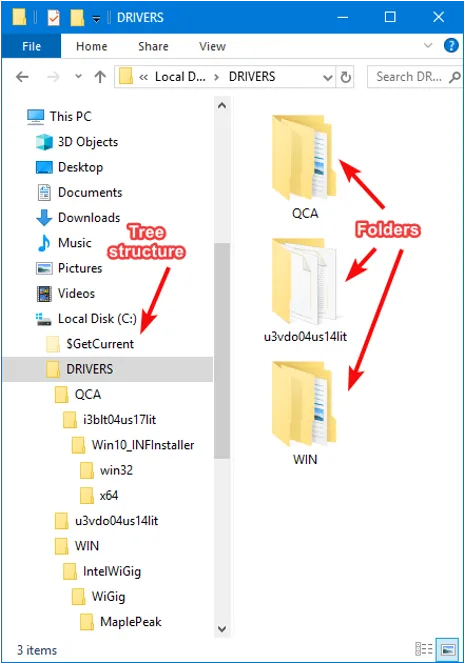
- Root and Subdirectories: Folders branch downward from parent directories into child folders.
- File Extensions: The suffix at the end of a filename (such as
.html,.css,.js) signals file type and MIME association to both the Operating System and web browsers.
1.3 Development Environment: Why Text Editors / IDEs Matter
Section titled “1.3 Development Environment: Why Text Editors / IDEs Matter”Standard word processors (e.g., Microsoft Word, PowerPoint) embed proprietary rich-text binary formatting and metadata that break web runtimes. Web development requires pure, unadorned plaintext editors.
- Integrated Development Environment (IDE): Professional software that bundles source code editing with development productivity tooling:
- Syntax Highlighting: Color-codes language keywords, strings, tags, and attributes.
- IntelliSense & Autocompletion: Predicts tags, parameters, and variable names.
- Live Error Diagnostics: Highlights syntax flaws and unclosed tags in real-time.
- Integrated Terminal & Debugger: Runs and tests scripts directly within the workspace.
- Visual Studio Code (VS Code): The industry standard development environment:
- VS Code for Web (
https://vscode.dev): Lightweight, browser-based editor. - VS Code Desktop Application: Full-featured local install with native file system access and plugin ecosystems.
- VS Code for Web (
2: HTML: The Content
Section titled “2: HTML: The Content”2.1 The Anatomy of a Web Page
Section titled “2.1 The Anatomy of a Web Page”Every web document follows a standardized hierarchical markup structure defined by the World Wide Web Consortium (W3C):
<!DOCTYPE html><html lang="en"> <head> <meta charset="UTF-8"> <title>IS300 Web Site</title> </head> <body> <h1>Welcome to Web Development</h1> <p>This is where visible page content lives.</p> </body></html>Core Components Breakdown
Section titled “Core Components Breakdown”<!DOCTYPE html>: Document type declaration instructing the browser engine to render the document using modern HTML5 standards mode.<html>...</html>: The root container encapsulating all document code.<head>...</head>: The metadata container housing machine-readable configuration:<title>: Specifies the document title shown in browser tabs and search engine results.<meta>: Sets character encoding (UTF-8), viewport scaling for mobile responsiveness, and SEO keywords.<link>&<style>: Imports external style sheets and internal CSS rules.<script>: Imports or embeds client-side JavaScript.
<body>...</body>: Contains all renderable content visible to the end user.
2.2 Essential HTML Elements & Semantic Markup
Section titled “2.2 Essential HTML Elements & Semantic Markup”- Emmet Abbreviations: Typing
!followed byTabin VS Code automatically expands into a complete, standard HTML5 boilerplate. - Headings:
<h1>down through<h6>define hierarchical typography in descending visual prominence and semantic importance. - Structural Containers:
<p>: Paragraphs of running text.<div>: Generic division / block-level styling container.<ul>&<li>: Unordered (bulleted) lists and individual list items.
2.3 HTML Attributes & Resource Addressing (URLs)
Section titled “2.3 HTML Attributes & Resource Addressing (URLs)”Attributes provide configuration metadata to opening tags using standard name="value" key-value pairs.
<img src="/images/dog.jpg" alt="A golden retriever puppy" /><a href="https://www.google.com" target="_blank">Search Google</a>Uniform Resource Locators (URLs)
Section titled “Uniform Resource Locators (URLs)”- Absolute URLs: Provide full network paths including protocol and domain name (
https://images.freeimages.com/example.jpg). Used for external third-party assets. - Relative URLs: Specify resource locations relative to the current site root or file directory (
/images/dog.jpg,../styles/main.css). Used for local assets.
2.4 User Input: Interactive Forms
Section titled “2.4 User Input: Interactive Forms”HTML forms capture user input and submit payloads to processing server endpoints:
<form action="/action_page.php" id="form1">  <label for="fname">First name:</label><br>  <input type="text" id="fname" name="fname"><br>
  <label for="lname">Last name:</label><br>  <input type="text" id="lname" name="lname"><br>
<input type="submit" value="Submit Form"></form>idAttribute: Assigns a globally unique identifier to an element within the DOM (Document Object Model).nameAttribute: Identifies the form parameter key submitted in HTTP requests.
3 CSS: Styling & Layout Engineering
Section titled “3 CSS: Styling & Layout Engineering”3.1 CSS Rule Anatomy
Section titled “3.1 CSS Rule Anatomy”CSS applies formatting rules to targeted HTML elements using a declarative syntax:
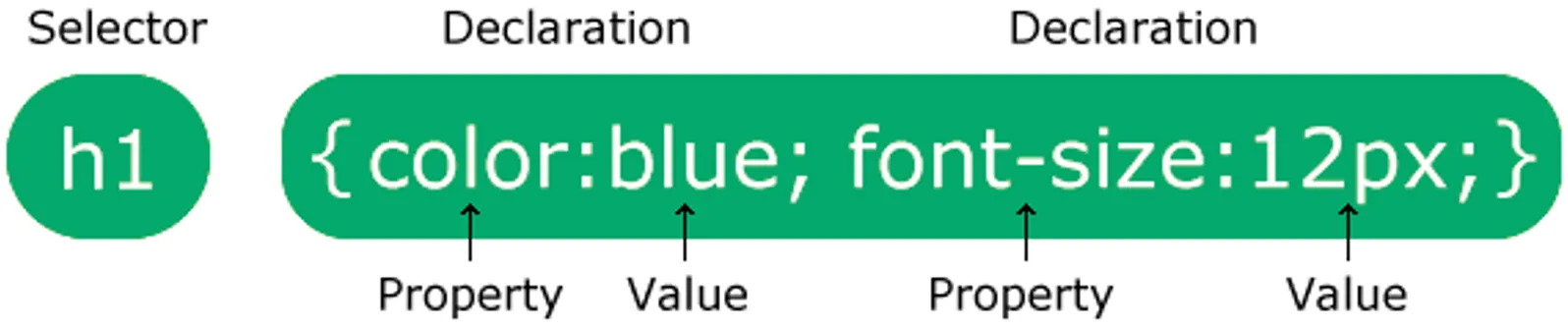
A CSS rule consists of:
- Selector: Specifies which HTML element(s) to style (e.g.,
h1). - Declaration Block: Enclosed in curly braces
{ ... }, containing one or more declarations separated by semicolons. - Property & Value: Each declaration pairs a CSS property name (e.g.,
color,font-size) with a valid measurement or keyword value (e.g.,blue,12px).
3.2 CSS Selectors & Combinators
Section titled “3.2 CSS Selectors & Combinators”-
Element Selector: Targets all matching HTML tag types:
p { color: red; } -
ID Selector (
#): Targets a single element with a matching uniqueid:#para1 { color: red; } -
Class Selector (
.): Targets all elements sharing a specific reusableclassattribute:.center { text-align: center; color: red; } -
Grouping & Combinator Selectors:
/* Grouping: Applies to h1, h2, and p */h1, h2, p { text-align: center; color: red; }/* Specificity Combinator: Applies only to p elements with class="center" */p.center { text-align: center; color: red; }
3.3 Methods of Applying Styles
Section titled “3.3 Methods of Applying Styles”- Inline Styles: Declared directly in element opening tags (
<p style="color:red;">). Discouraged due to poor maintainability. - Internal Styles: Declared inside
<style>blocks in the<head>tag. Useful for single-page isolated prototypes. - External Stylesheets (Industry Best Practice): Linked via
<link rel="stylesheet" href="style.css">. Promotes strict separation of concerns, page caching, and site-wide reusability.
3.4 The CSS Box Model
Section titled “3.4 The CSS Box Model”Every renderable HTML element is interpreted by browser rendering engines as a modular rectangular box composed of four concentric layers:
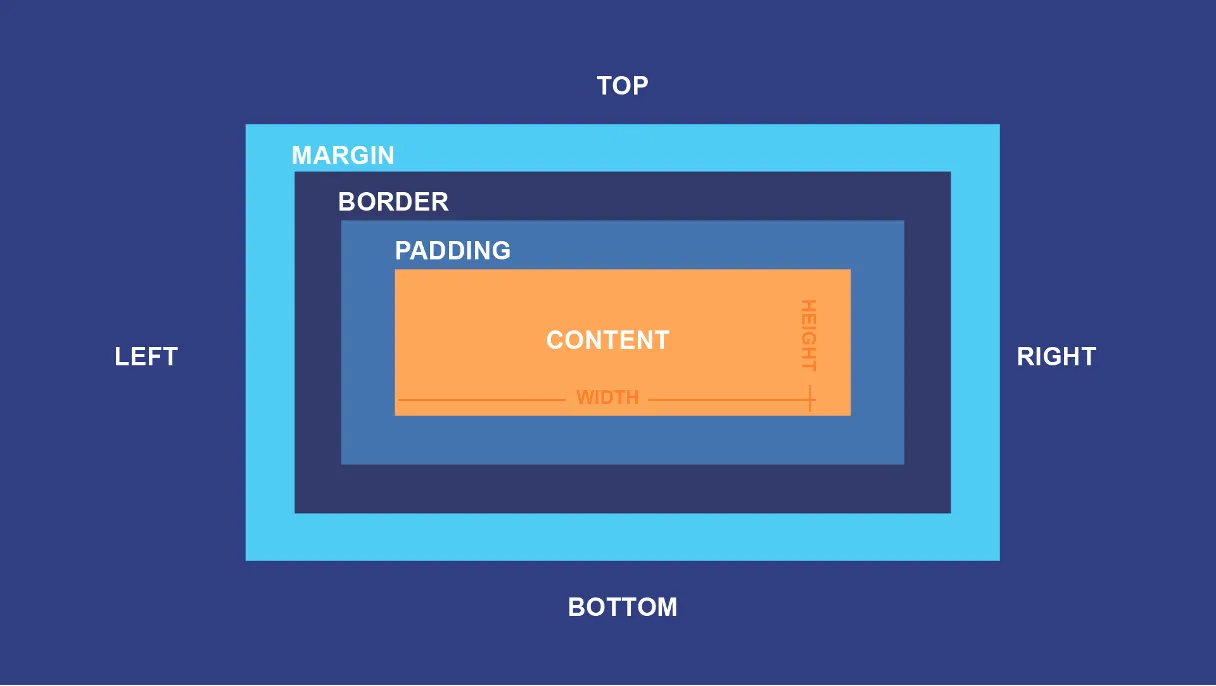
- Content: The inner rectangular area where text, images, and nested elements appear (sized by
widthandheight). - Padding: The clear space immediately surrounding the content area, sitting inside any borders.
- Border: The stroke or line wrapped around the padding and content.
- Margin: The outermost transparent buffer space separating the element’s border from adjacent elements on the page.
Code Demonstration
Section titled “Code Demonstration”h2 { background-color: lightgrey; width: 300px; border: 15px solid green; padding: 50px; margin: 20px;}3.5 Modern Layout Architecture: Flexbox
Section titled “3.5 Modern Layout Architecture: Flexbox”Modern web pages avoid rigid, table-based layouts in favor of flexible, multi-device layouts such as Flexbox and CSS Grid:
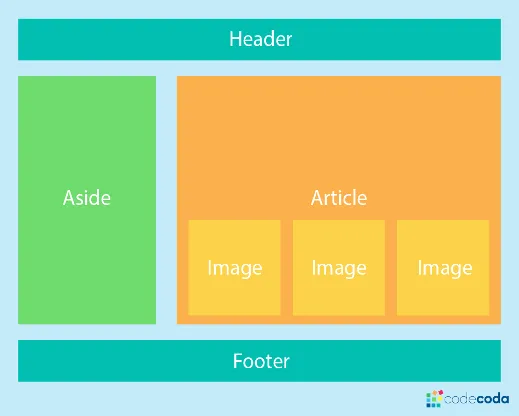
- Header: Global top-level branding and navigation banner.
- Aside: Sidebar container for auxiliary navigation, secondary links, or metadata.
- Article / Main: Primary thematic body content area enclosing dynamic components (such as image grids or article feeds).
- Footer: Global bottom section for legal disclaimers, copyrights, and sitemaps.
4 JavaScript & Programming Fundamentals
Section titled “4 JavaScript & Programming Fundamentals”4.1 Role of JavaScript in Modern Web Systems
Section titled “4.1 Role of JavaScript in Modern Web Systems”JavaScript provides runtime client-side execution, handling:
- User interface events (button clicks, form validations, keyboard events).
- Dynamic DOM manipulation (modifying HTML content and CSS classes on the fly).
- Asynchronous network requests (fetching data in the background via APIs without page reloads).
4.2 Programming Language Execution Models
Section titled “4.2 Programming Language Execution Models”Programming languages translate human-readable logic into machine-executable instructions through three primary execution paradigms:
| Category | Execution Mechanism | Common Languages | Web Context |
|---|---|---|---|
| Interpreted / Scripting | Code is interpreted and executed dynamically line-by-line by a Virtual Machine engine. | JavaScript, Python, PHP | V8 Engine inside Chrome executes JS. |
| Compiled | Source code is converted ahead-of-time by a compiler into direct machine-code binaries. | C, C++, Rust | High-performance system utilities and game engines. |
| Hybrid / Bytecode | Source code compiles to intermediate bytecode, executed inside a language runtime / VM. | Java, C#, Kotlin | Enterprise backend business services. |
4.3 Universal Programming Control Structures
Section titled “4.3 Universal Programming Control Structures”- Sequential Execution: Instructions execute in top-to-bottom order.
- Branching (Conditionals): Evaluating boolean logic expressions (
if (condition) { ... } else { ... }). - Loops (Iteration): Repeating execution blocks until conditions terminate (
while,for). - Functions: Modular, reusable subroutines grouping related instruction sets together.
4.4 JavaScript Implementation Strategies
Section titled “4.4 JavaScript Implementation Strategies”A. Inline Event Handlers
Section titled “A. Inline Event Handlers”<button type="button" onclick="document.getElementById('demo').innerHTML = 'Hello World!'"> Say Hello</button><p id="demo"></p>B. Internal <script> Block
Section titled “B. Internal <script> Block”<p id="demo"></p><script> document.getElementById("demo").innerHTML = "Hello World!";</script>C. Head Functions vs. Bottom-of-Body Scripts
Section titled “C. Head Functions vs. Bottom-of-Body Scripts”<!DOCTYPE html><html><head> <script> // Functions defined in head are loaded in memory before DOM rendering function updateGreeting() { document.getElementById("demo").innerHTML = "Hello World!"; } </script></head><body> <h2>Head Script Example</h2> <p id="demo">Original Text</p> <button type="button" onclick="updateGreeting()">Click Me</button></body></html>- Scripts in
<head>: Executed before the HTML document body has parsed. Suitable for configurations or background data pre-fetching. - Scripts before
</body>: Recommended for DOM-manipulating scripts, ensuring HTML elements are fully parsed before scripts query or modify them. - External Script Files (
<script src="script.js"></script>): Standard for production applications, maintaining clean separation of business logic from presentation.
5 Enterprise Perspective — Dynamic Web Applications
Section titled “5 Enterprise Perspective — Dynamic Web Applications”In contemporary software architecture, virtually 100% of commercial enterprise websites are not static handwritten HTML files. Instead, they are generated dynamically by Web Applications (built with frameworks in JavaScript/Node.js, Python, Java, or C#). These server applications query relational and distributed databases, enforce access control, and construct responsive HTML/CSS/JS payloads on the fly for client browsers.